

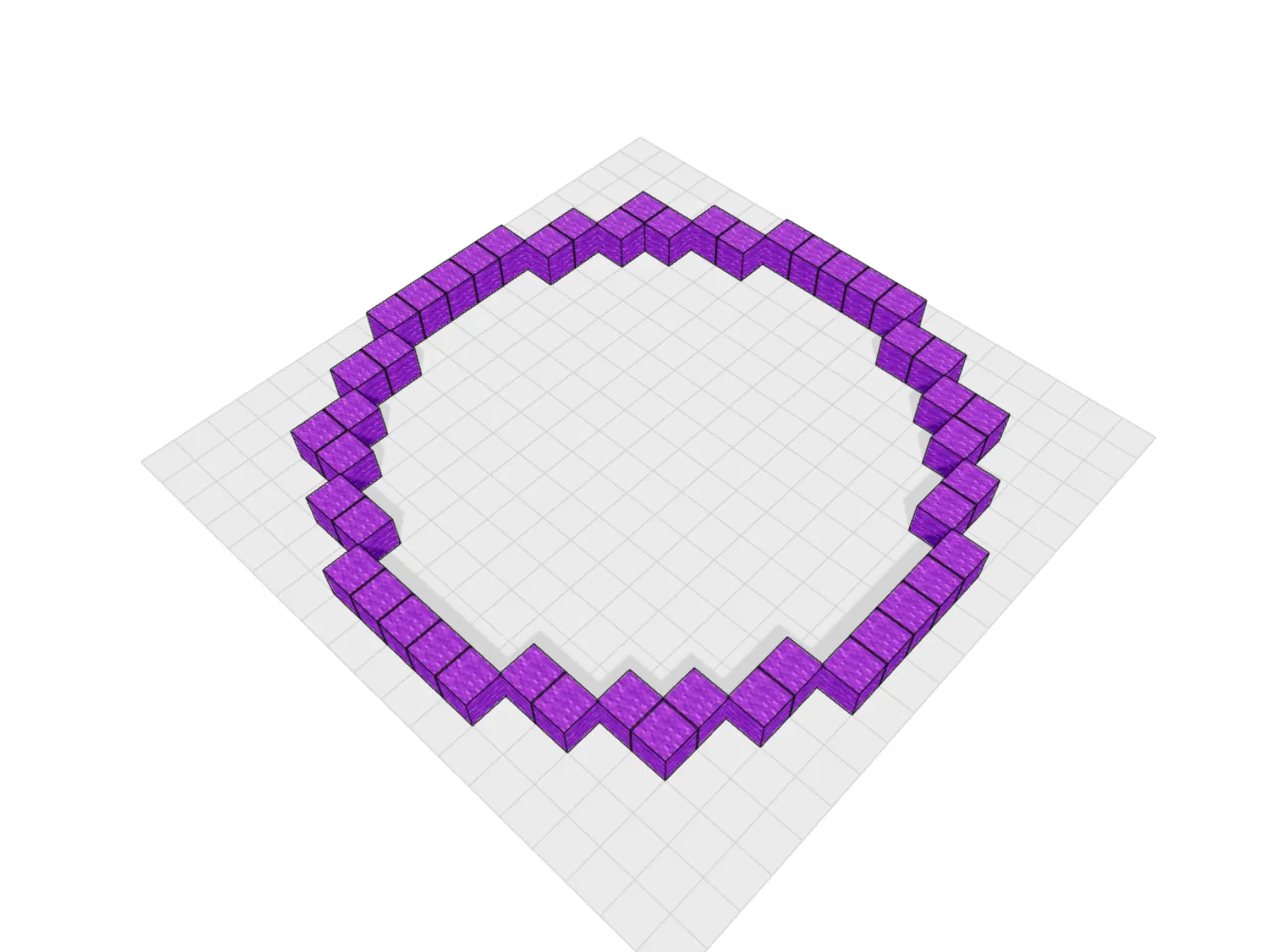
Circle
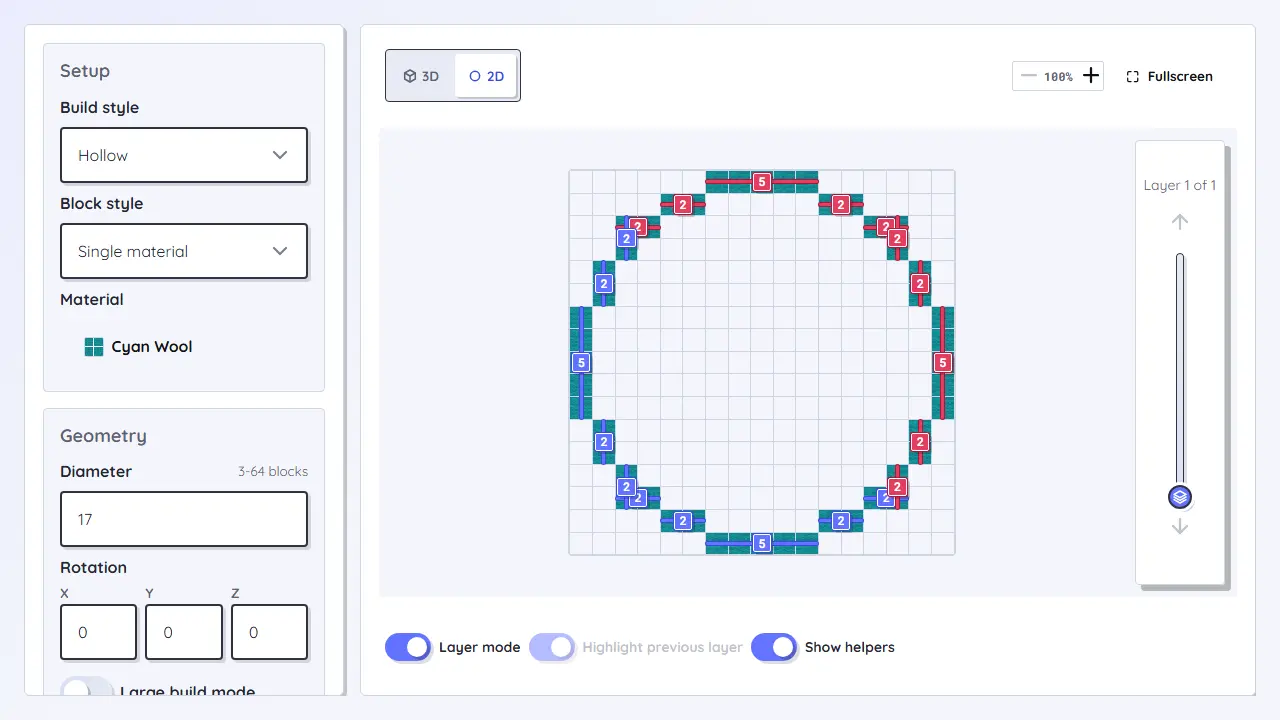
Use for footprints: towers, wells, arenas, portal rooms, round farms, and any build where the ground plan must be clean first.
Open circle generatorChoose a generator, set the dimensions, check the layers, and build from a block plan instead of guessing the curve in-game.
Choose the right generator
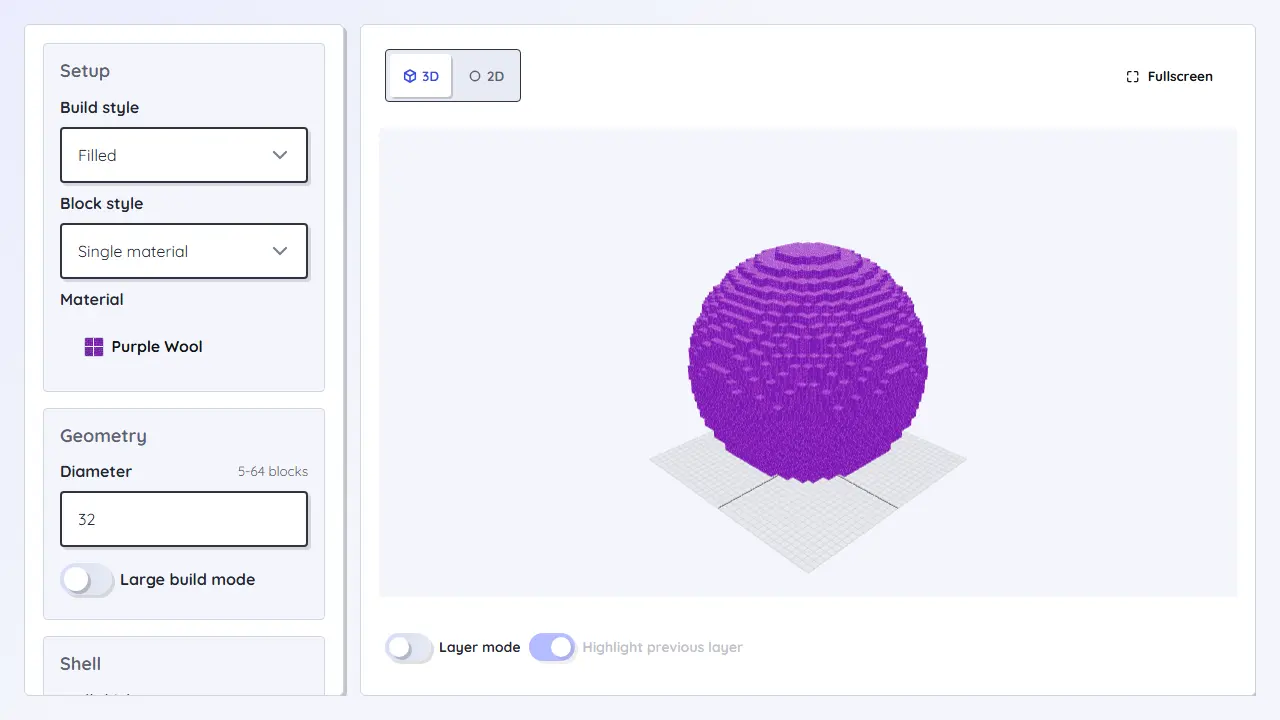
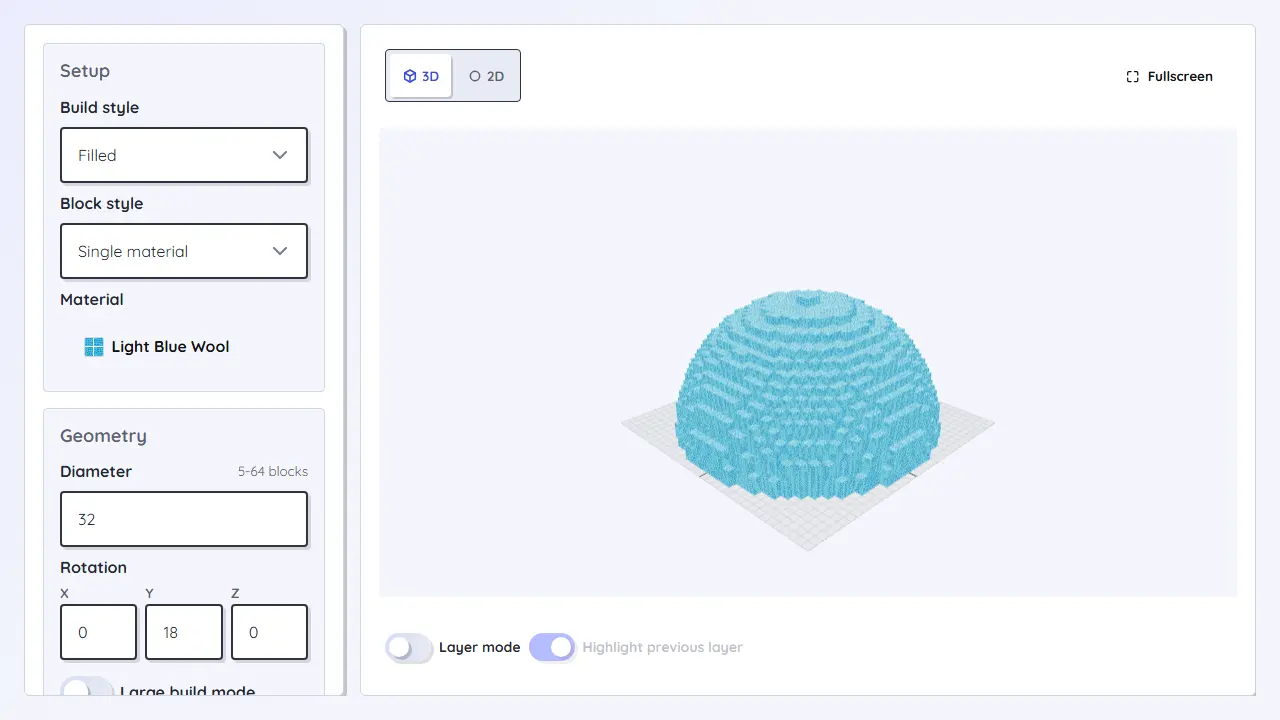
Start with the shape that controls the build. The preview images below show the kind of layer plan each generator is meant to produce.
Use for footprints: towers, wells, arenas, portal rooms, round farms, and any build where the ground plan must be clean first.
Open circle generator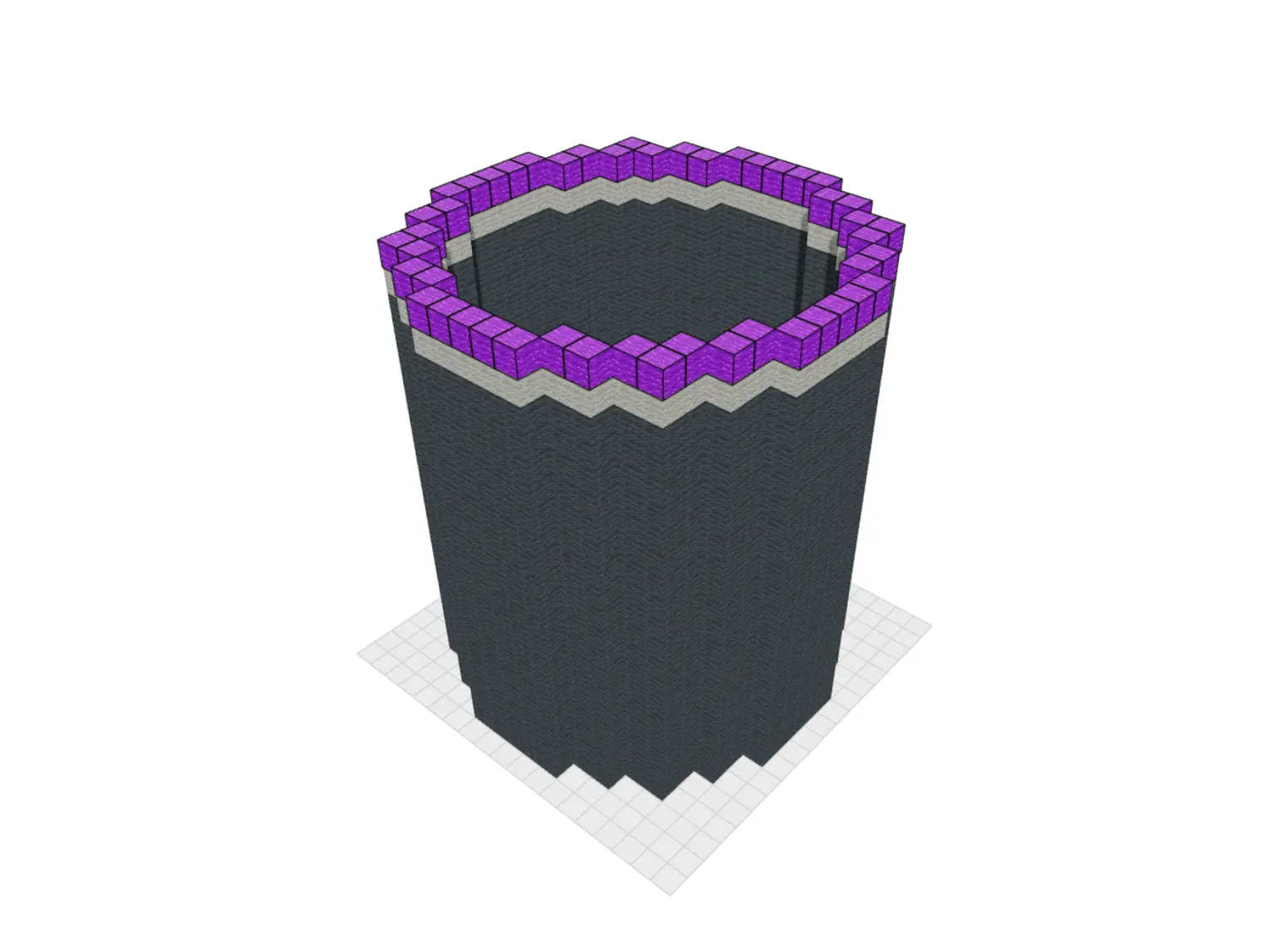
Use when the same circle repeats upward: towers, silos, pipes, columns, lighthouses, shafts, and circular walls.
Open cylinder generator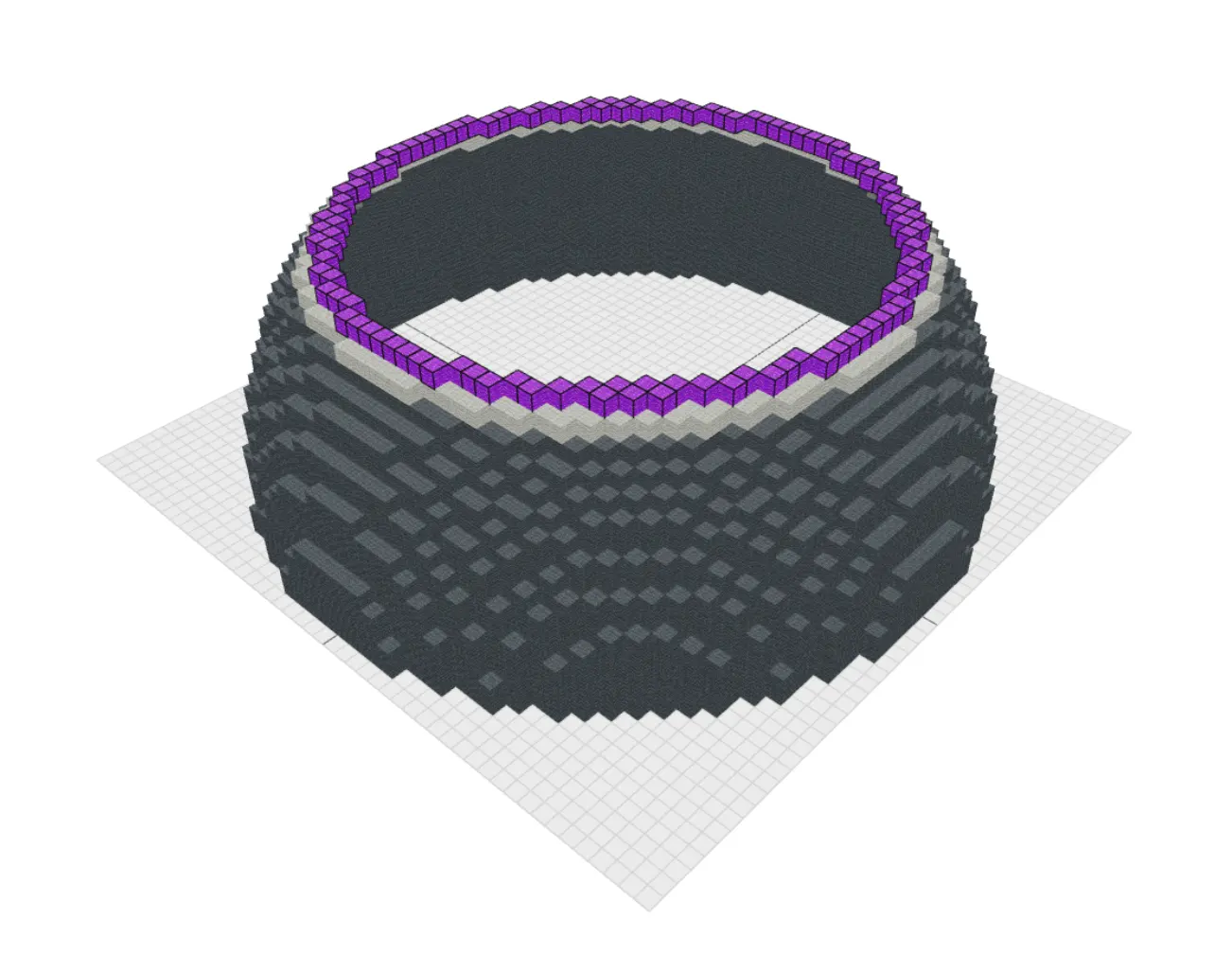
Use for curved roofs, observatories, glass covers, underwater bases, arena tops, and half-sphere structures.
Open dome generator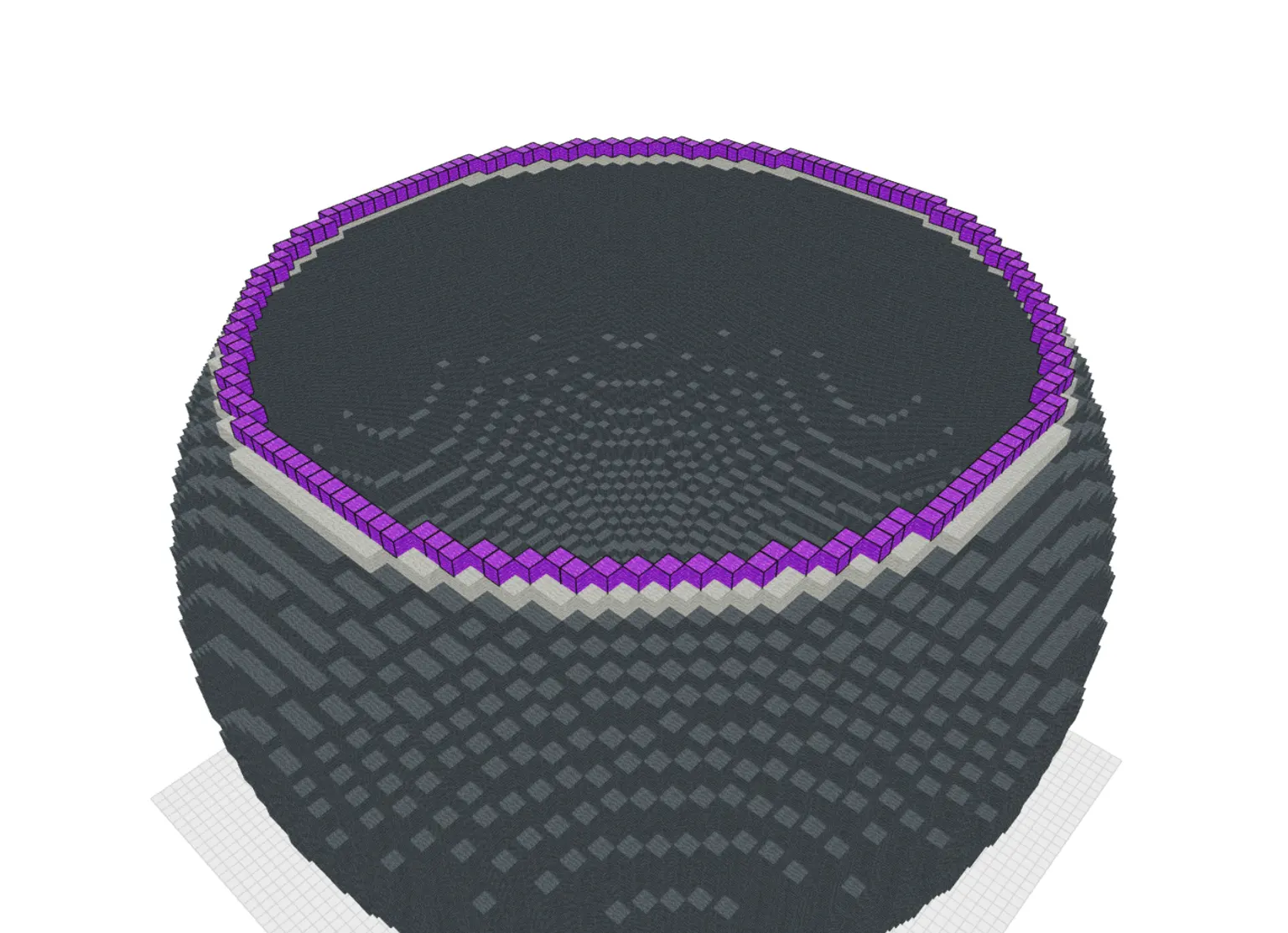
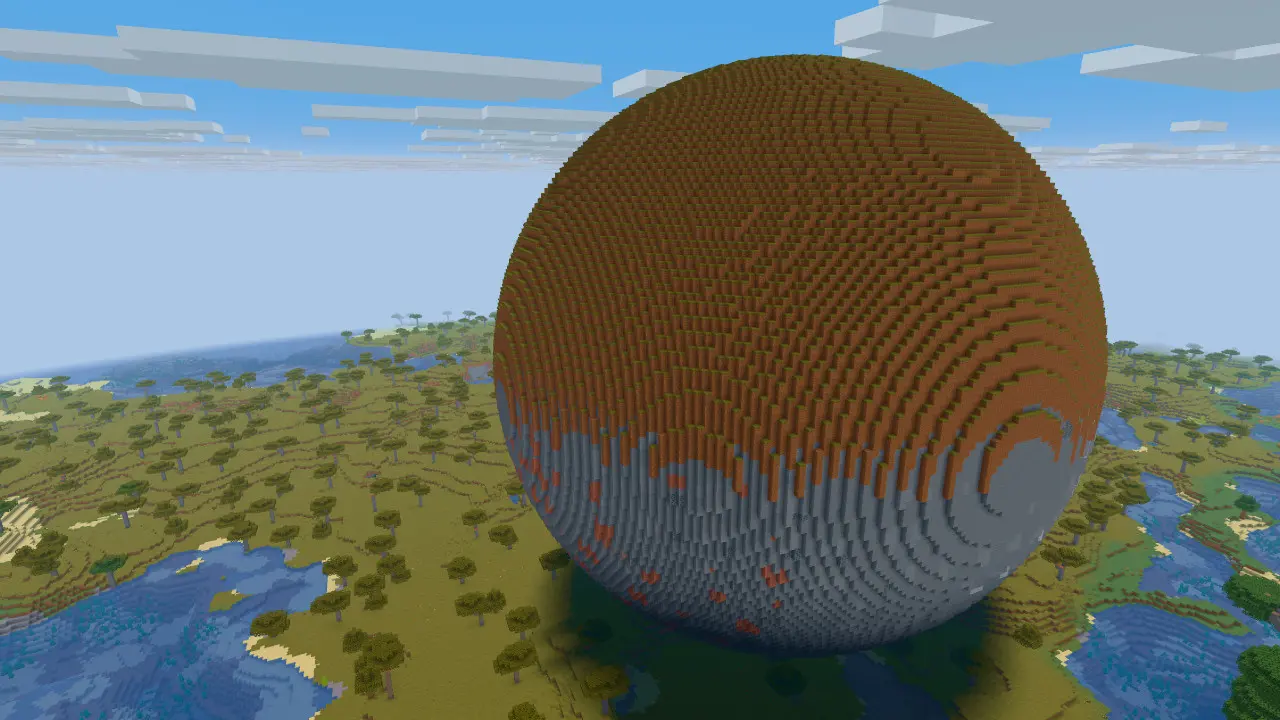
Use for full volumes: planets, balloons, habitats, orbs, organic shells, and hollow or filled round structures.
Open sphere generatorUse the all-in-one shape generator when you are still deciding between circle, sphere, dome, pyramid, cone, cylinder, ellipsoid, or torus.
Compare shapesUse separate width, height, and depth for eggs, airships, boulders, stretched planets, organic rooms, and oval terrain pieces.
Open ellipsoid generatorUse procedural trunks, branches, roots, and leaf clusters for custom oaks, spruces, willows, jungle trees, and fantasy trees.
Open tree generator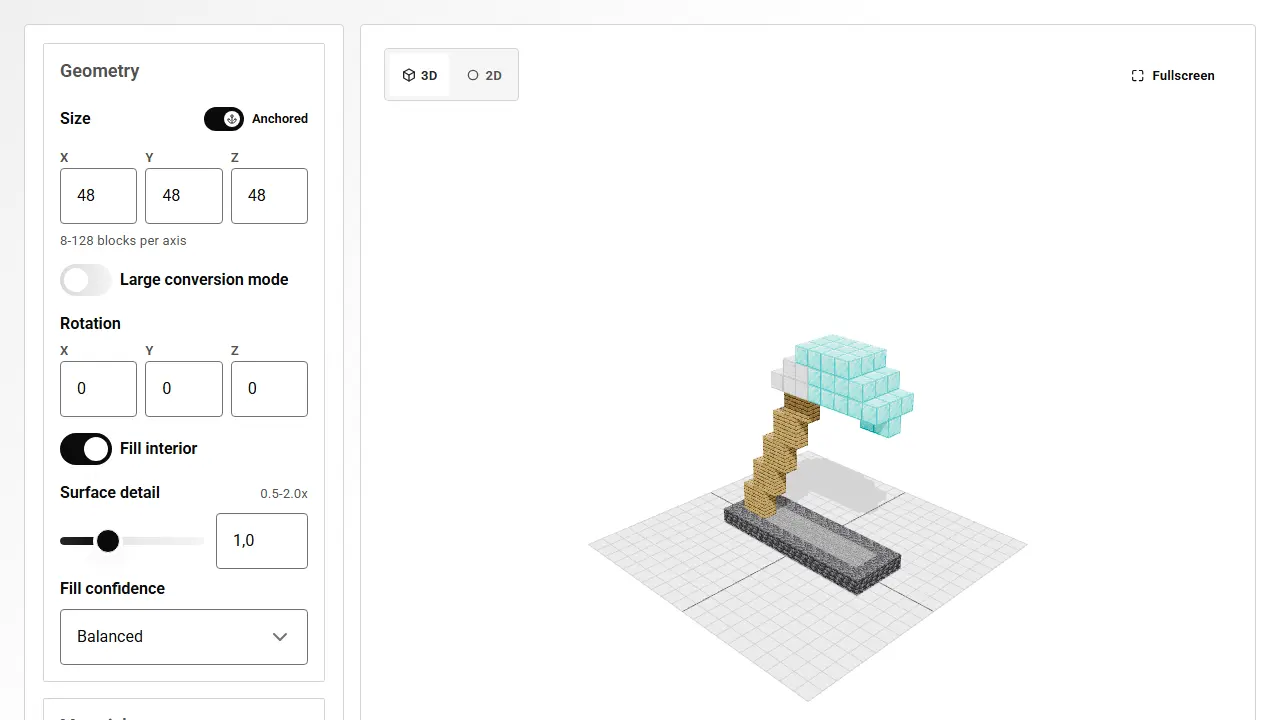
Use the Minecraft 3D Model Converter when a normal shape generator is too limited. Import GLB, GLTF, OBJ, or STL files, voxelize the model, review the block result, and turn custom statues, props, terrain pieces, and organic objects into Minecraft block coordinates.
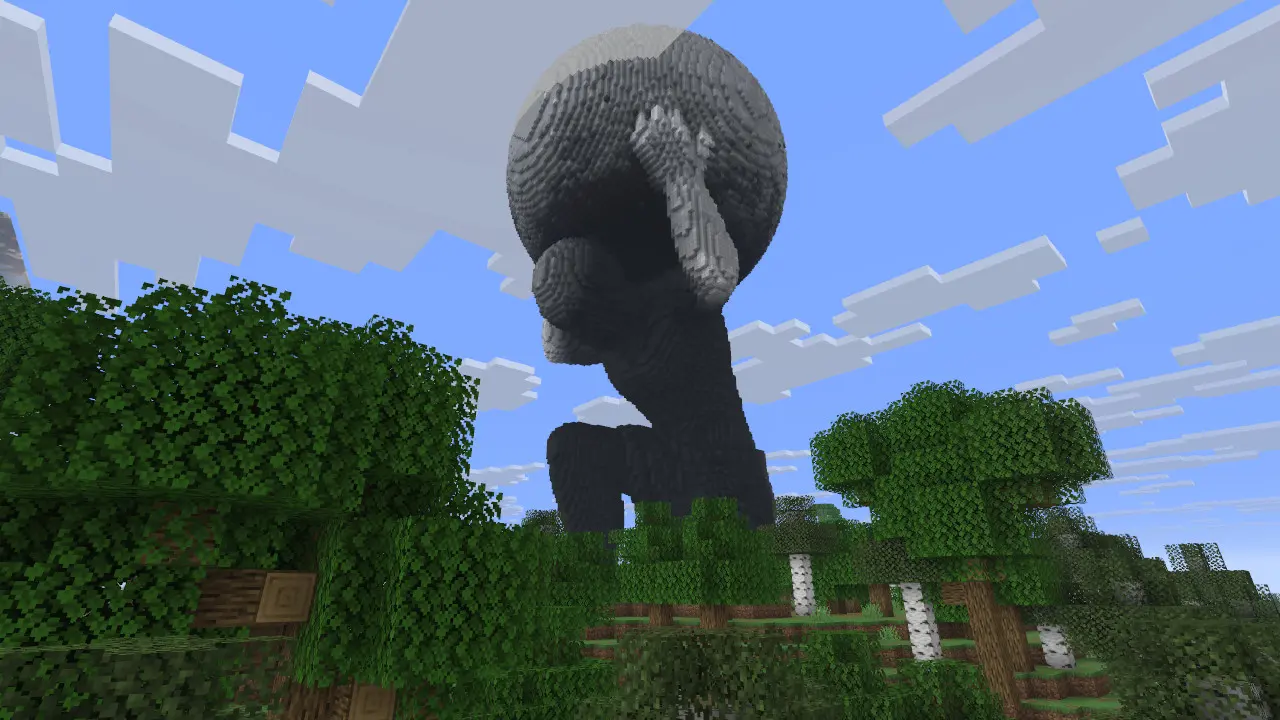
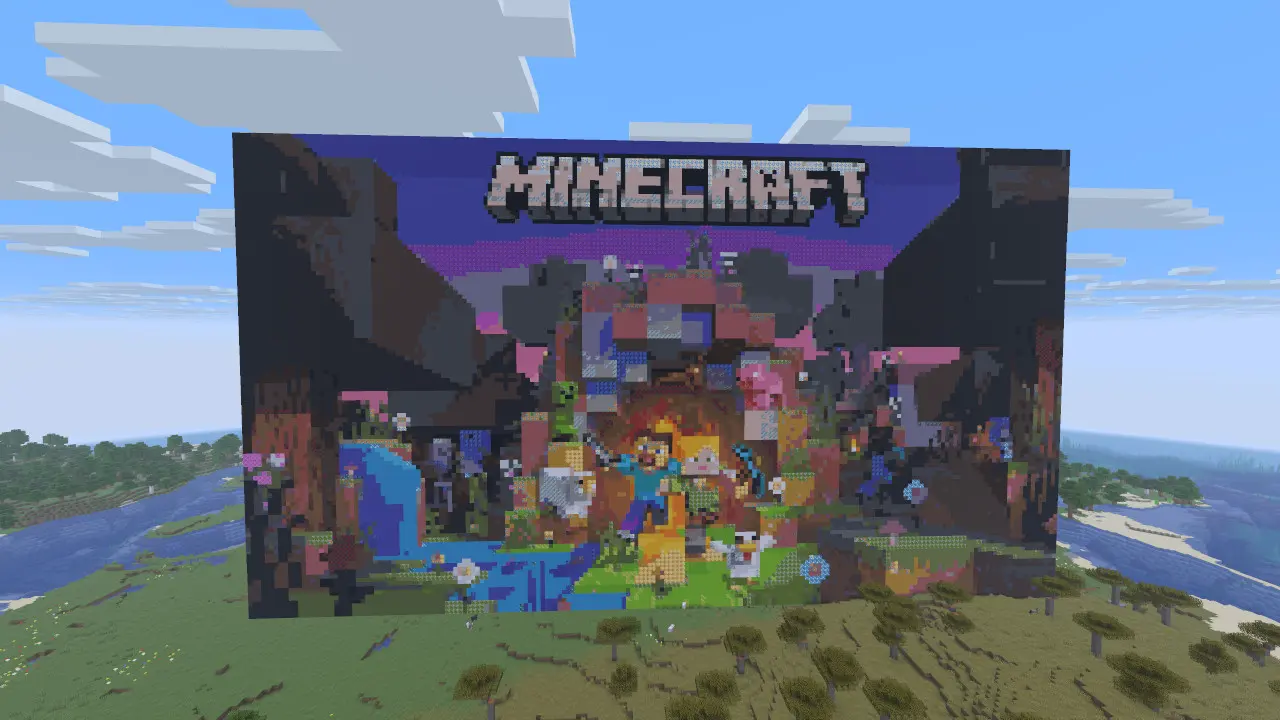
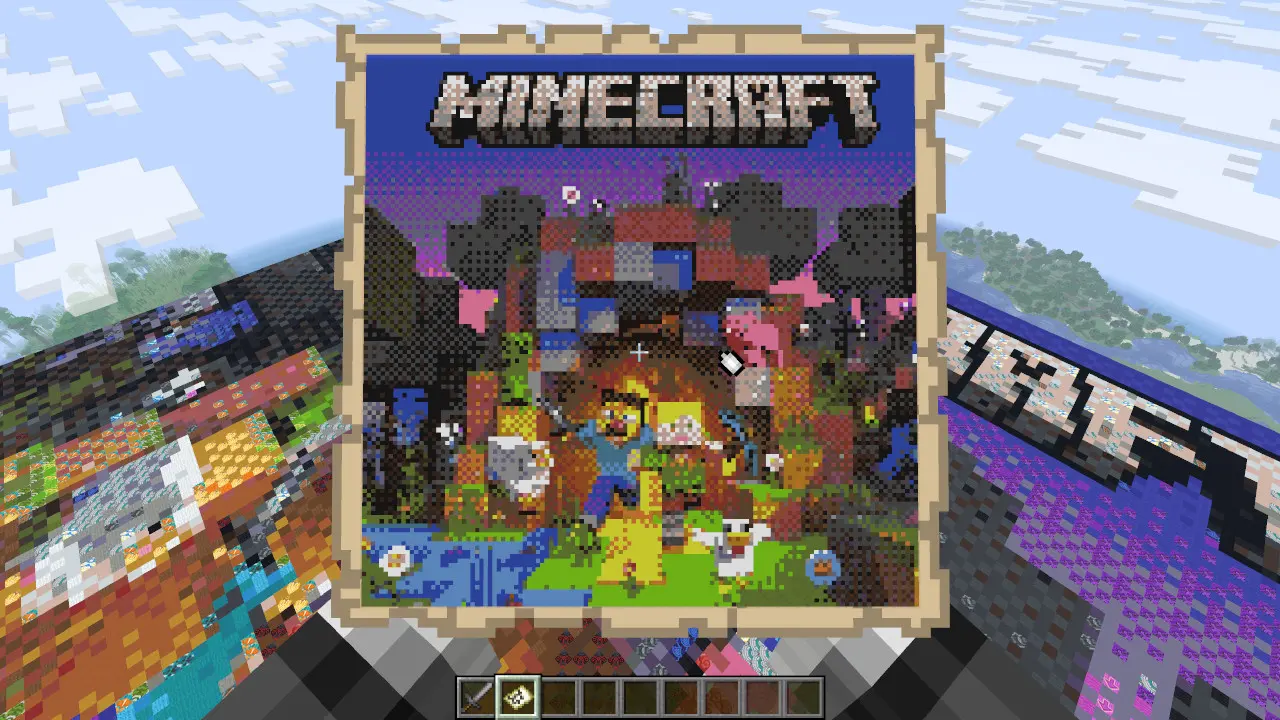
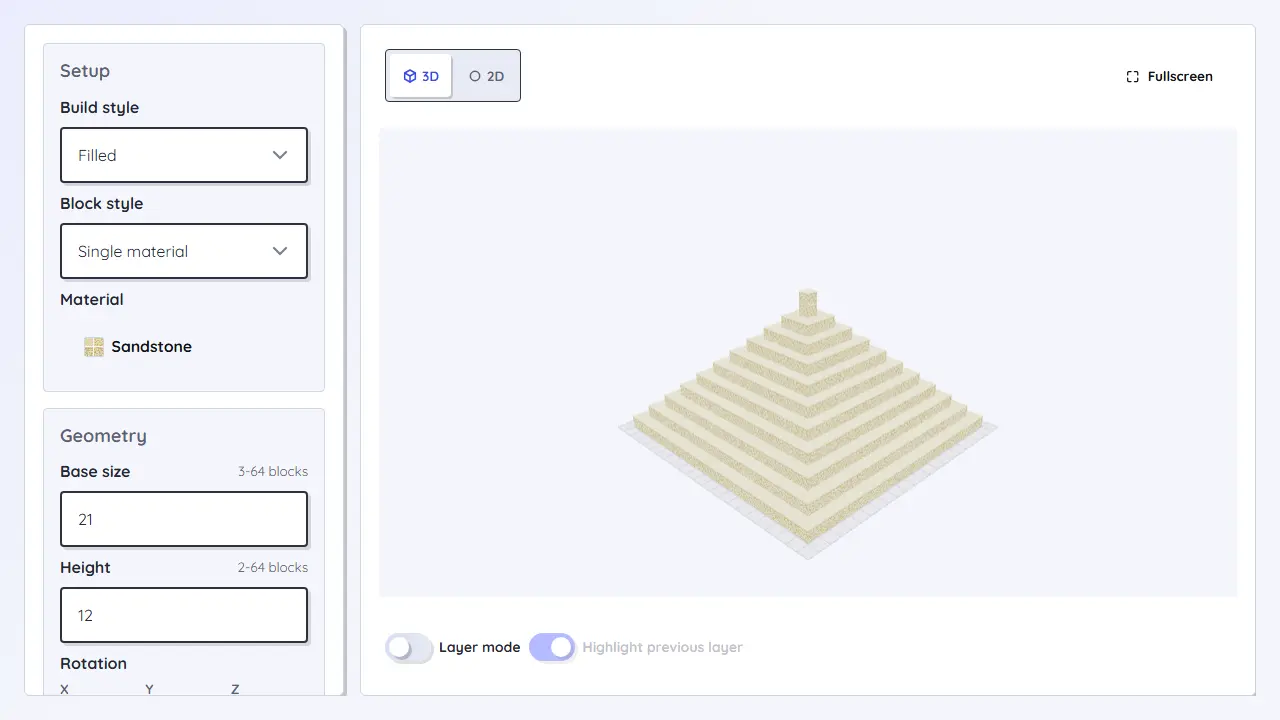
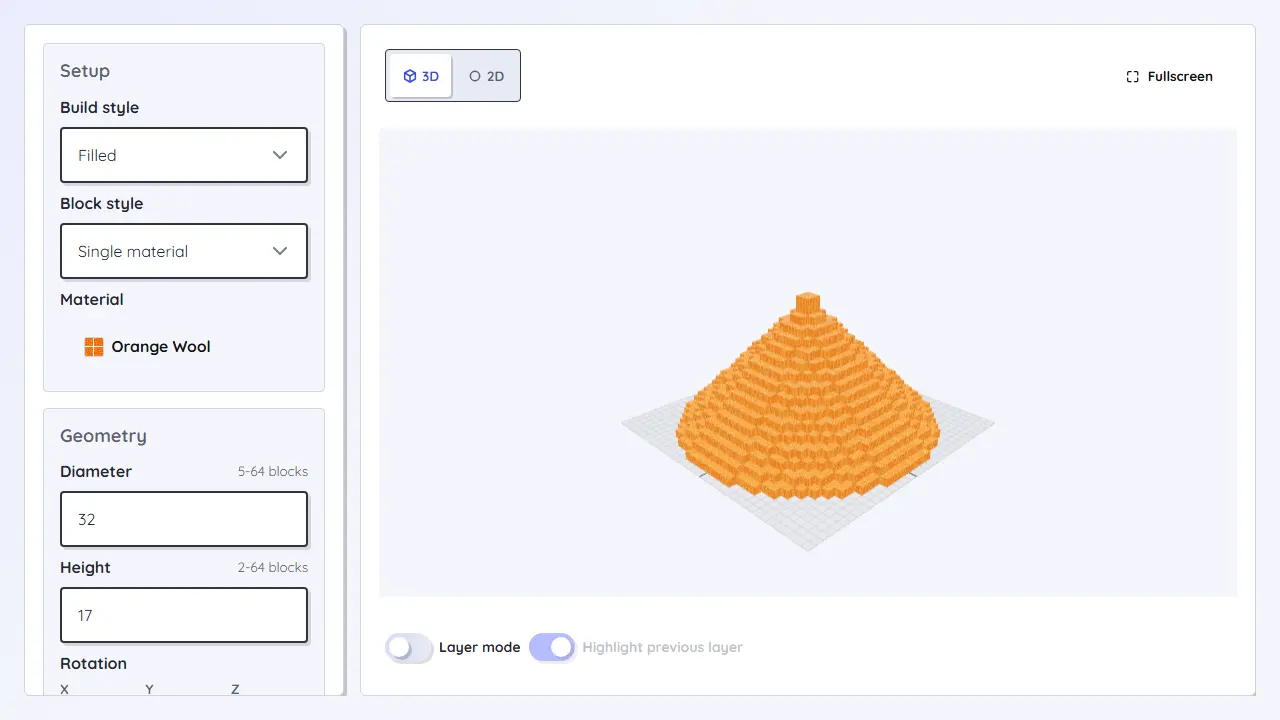
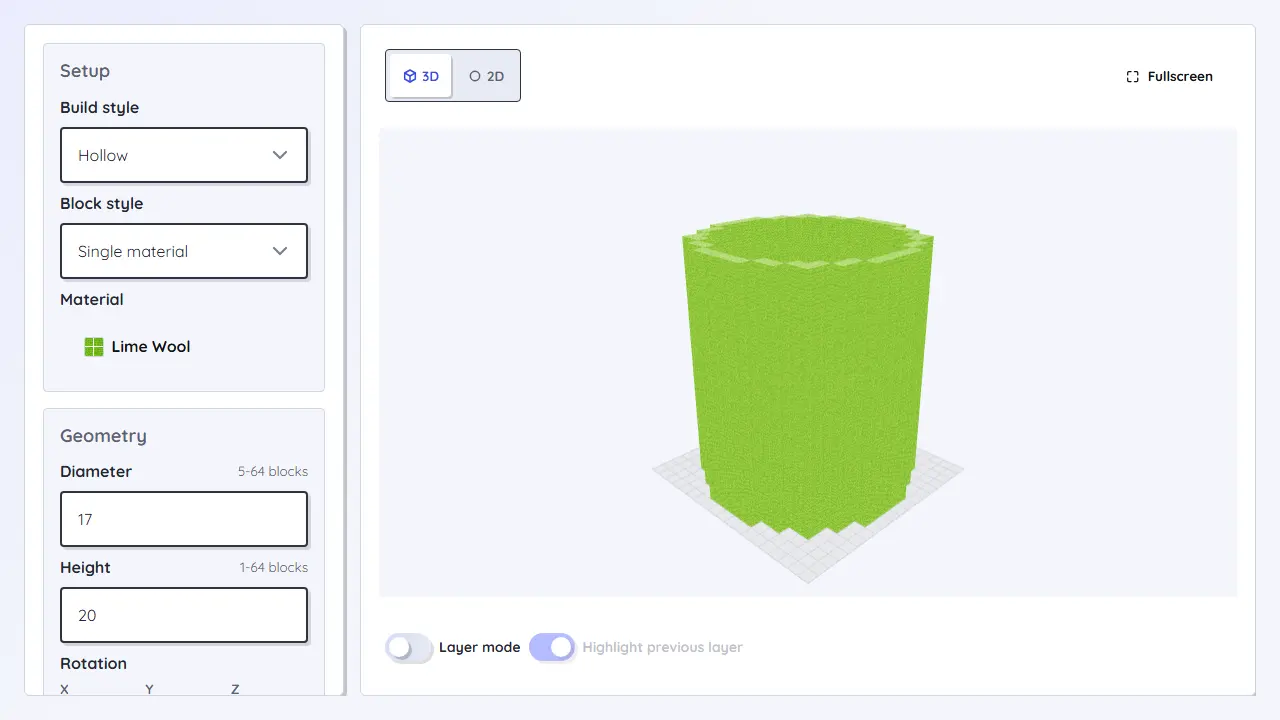
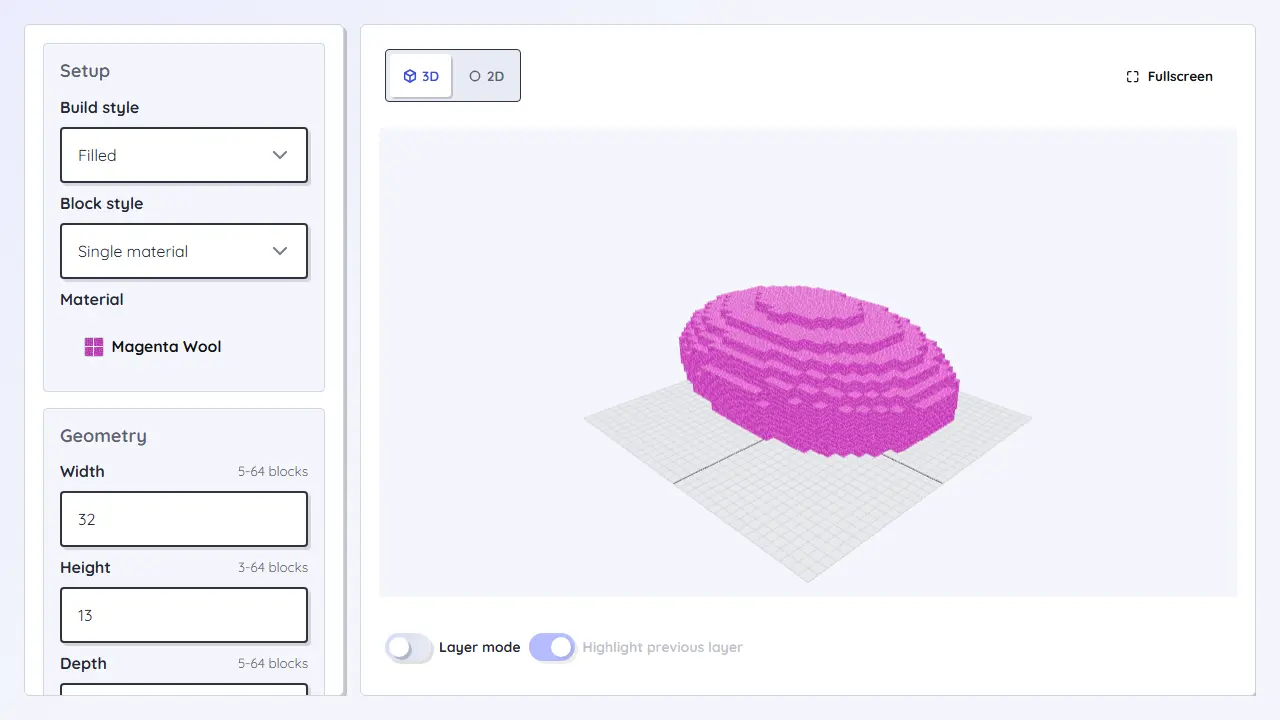
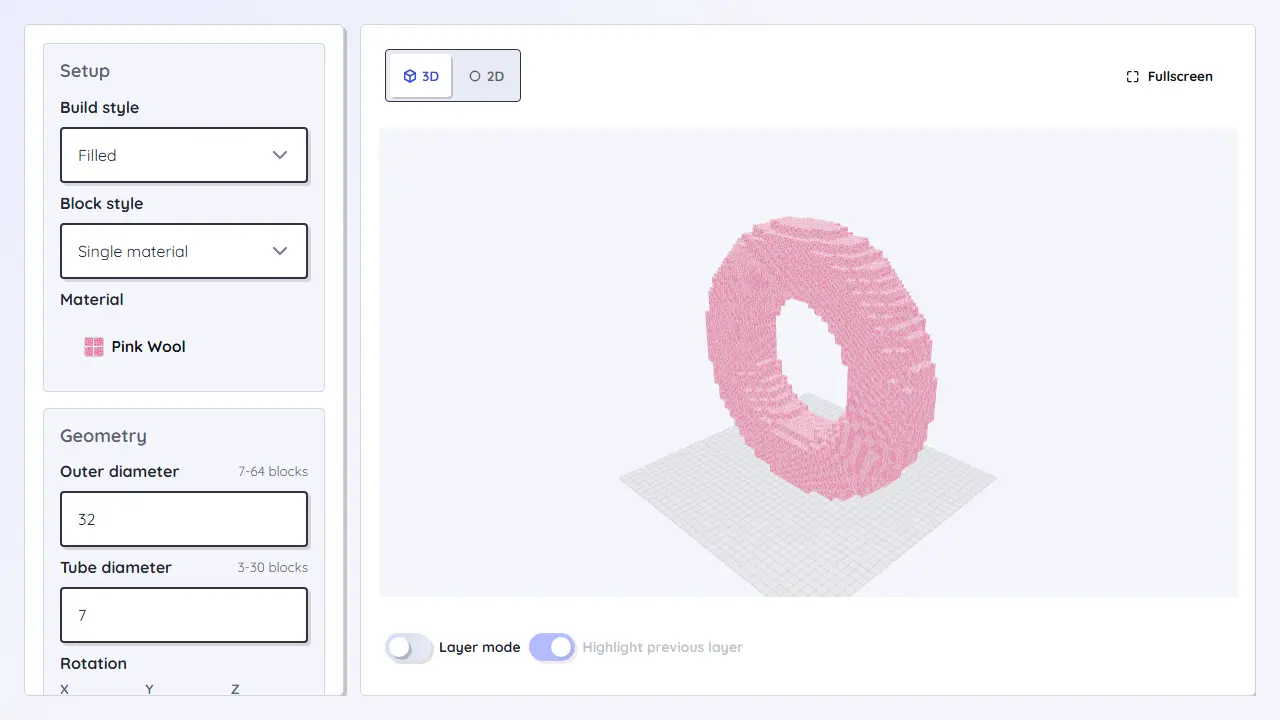
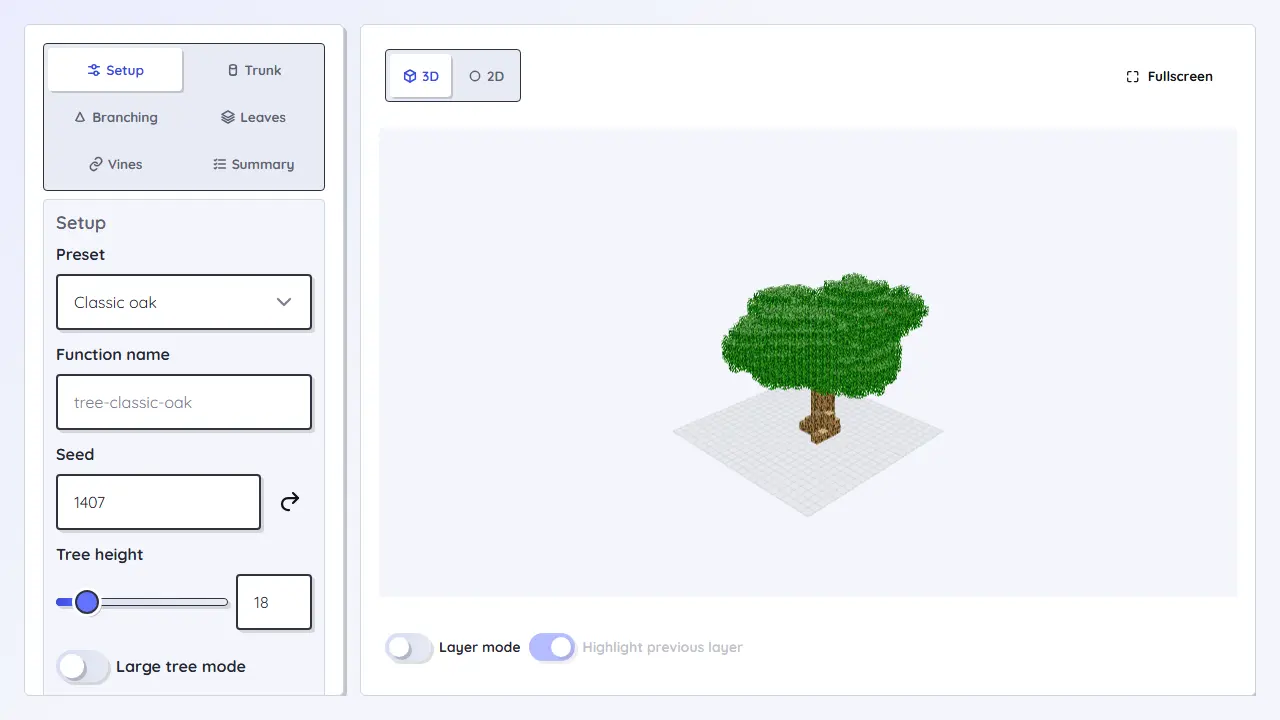
Use the circle generator for a flat footprint. Use the cylinder generator when that footprint repeats upward. Use dome or sphere tools when each height needs a different layer.
Yes. The useful part for survival is the block count and layer plan: you can gather materials first and build one layer at a time.
Use the 3D model converter for imported GLB, GLTF, OBJ, or STL files. For simple geometric builds, a dedicated shape generator is usually faster and cleaner.